Token model
Tokens represent any asset with an expiration date that you cannot afford to miss: certificates, API keys, secrets, contracts, licenses, memberships. Each token lives inside a specific workspace. Alerts use the workspace defaults (thresholds and enabled channels); recipients and, optionally, thresholds can be overridden per token by selecting one or more contact groups.
A TokenTimer token is the item being tracked, not a credential. Credentials that authenticate against TokenTimer's API are called machine API tokens (see Executor API); credentials you supply to integrations (GitHub PATs, Vault token or AppRole, Azure client credentials) are used for the manual scan and never stored on TokenTimer Cloud.
- Lifecycle: create the token with an expiration date, TokenTimer tracks status and sends alerts as thresholds are reached, then marks it expired if the date passes.
- Visibility: color-coded status in the dashboard and usage views to prioritize renewals.
- Ownership: who receives alerts comes from the token's contact groups (named lists of recipients and channels). Assign one or more groups (on by default); overlapping recipients are deduplicated. By default, the workspace's initial contact group is used (owner's email).
Fields and categories
Every token needs a name, category, and type. You can also add an expiration date, organize tokens into sections, and include additional details.
Required:
- Name: a descriptive name for your token (1-255 characters)
- Category: one of: Certificates, Keys & Secrets, Licenses, or General (API values:
cert,key_secret,license,general) - Type: the specific type within the category (for example SSL certificate, API key, software license)
Optional:
- Expiration date: when the token expires (if left empty, the token is marked as "never expires")
- Section: group related tokens together (for example "Production", "Development")
- Description & notes: helpful context or reminders
- Contacts: ownership or contact notes about the asset. This field does not choose alert recipients; configure those through workspace contacts and the token's contact groups.
Category-specific details:
- Certificates: domains, issuer information, and certificate details
- Keys & Secrets: where they are stored and rotation instructions
- Licenses: vendor name, number of seats, renewal dates, and costs
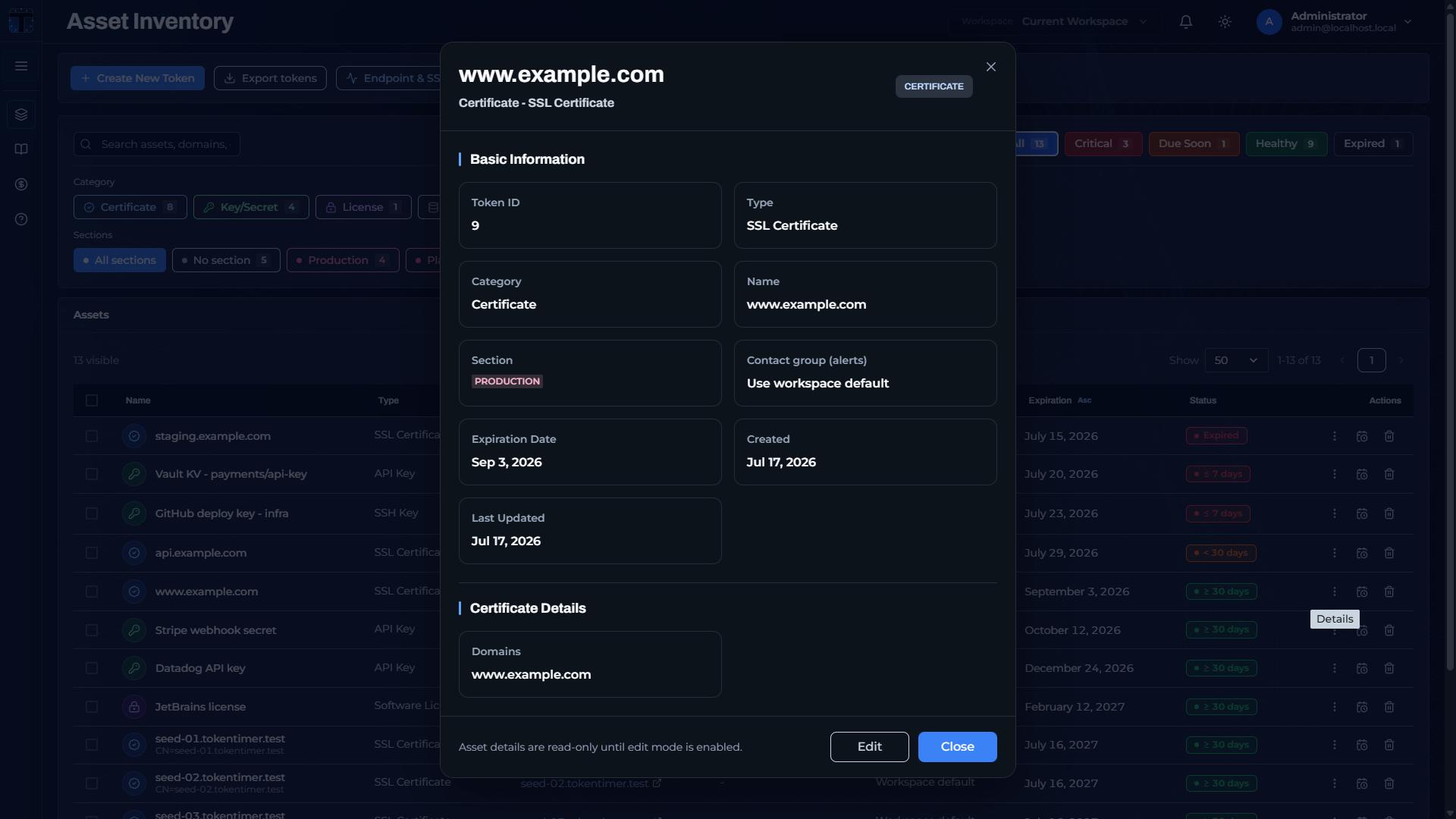 Token detail view: basic information, section, contact groups, and category-specific certificate details.
Workspace scoping
Default thresholds and channels are configured at the workspace level. Recipients and (optionally) thresholds may be overridden by assigning a token to one or more contact groups. Role-based access means only members of the workspace can view or manage its tokens.
- Changing workspace default thresholds affects tokens that do not use a group thresholds override.
- Use sections to reflect environments or teams (for example Production vs. Staging) and filter views.
- Assign contact groups to route alerts to the right teams and, if needed, apply different thresholds policies (union of effective thresholds across assigned groups).
- Token counts are capped per plan: per workspace on Free, per organization on paid plans. See Plan limits.
Alerting and alert history
Open a token (or a certificate details modal) and expand Alerting and alert history to see:
- Current status: eligibility (should an alert fire now) separate from delivery (what happened after queue). Expired-at-import and missing post-expiry thresholds are eligibility reasons, not delivery failures. On the API this is
alert_stateon Get token by id (GET /api/tokens/{id}) and list; there is noGET /api/tokens/{id}/alert-state. - Upcoming thresholds for this asset.
- Alert timeline: persisted and queue-backed lifecycle events, newest first. Current eligibility is not reconstructed from this history. API: Get token alert lifecycle history (
GET /api/tokens/{id}/alert-timeline).
Workspace-wide counts and recent activity live on Control Center Workspace alerting. See Control Center: eligibility vs delivery. Viewers can read the per-token timeline; Control Center alerting tabs require a workspace manager or admin.
Getting tokens into TokenTimer
Beyond creating tokens one by one in the dashboard, you can:
- Import from a file (CSV, XLSX, JSON, YAML)
- Connect an integration (Vault, GitHub, GitLab, AWS, Azure, Entra ID, GCP)
- Monitor an HTTPS endpoint, which auto-creates an SSL certificate token
- Discover subdomains with the Domain Checker and bulk-import their certificates
- Use the REST API to create tokens programmatically